How to: Upgrade Firmware via Portal
- Brian Ross
Owned by Brian Ross
2018/08/21
2 min read
Loading data...
Procedure for upgrading firmware via the Comb Portal Web site.
Prerequisites
Admin user for the organisation.
Step-by-step guide
| Step | Description | Diagram |
|---|---|---|
| 1 | Select Access Management → Organisation Devices. |
|
| 2 | Click on the Quick Action button and select the Firmware option. | 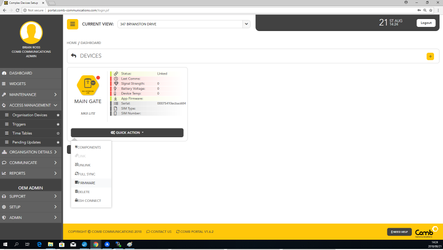 |
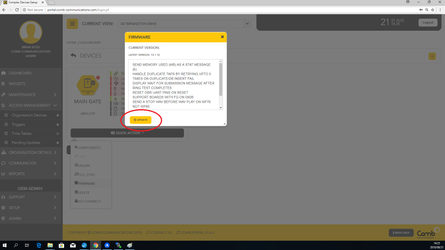
| 3 | A popup window will display indicating if a firmware version is available to be download onto the selected device. | 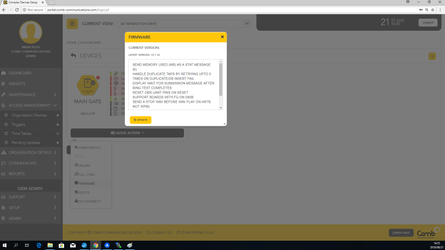 |
| 4 | If there is no firmware upgrade available the popup window will indicate that no firmware upgrades are available. | 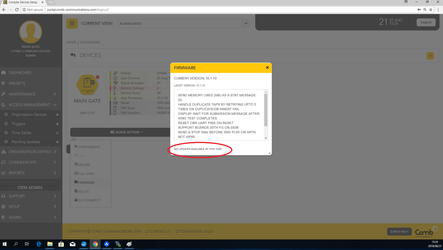 |
| 5 | Click on the Upgrade button. The popup window will close. |
|
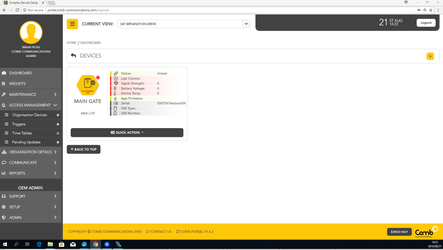
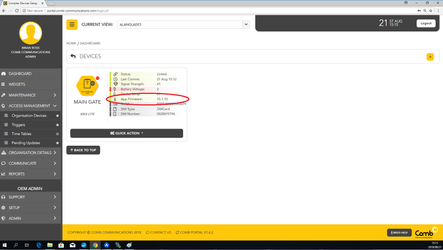
| 6 | Wait approximately 10 minutes before checking the App firmware version. The version number must indicate the new version. |
|
| 7 | Possible causes for failed upgrade:
| Solution:
|
© 2018 Comb Communications. All Rights Reserverd.
http://www.comb-communications.com