Editing or removing a person from a unit
To edit or remove a person from a unit, we start by navigating to the "Units" page from the side menu - ORGANISATION > UNITS
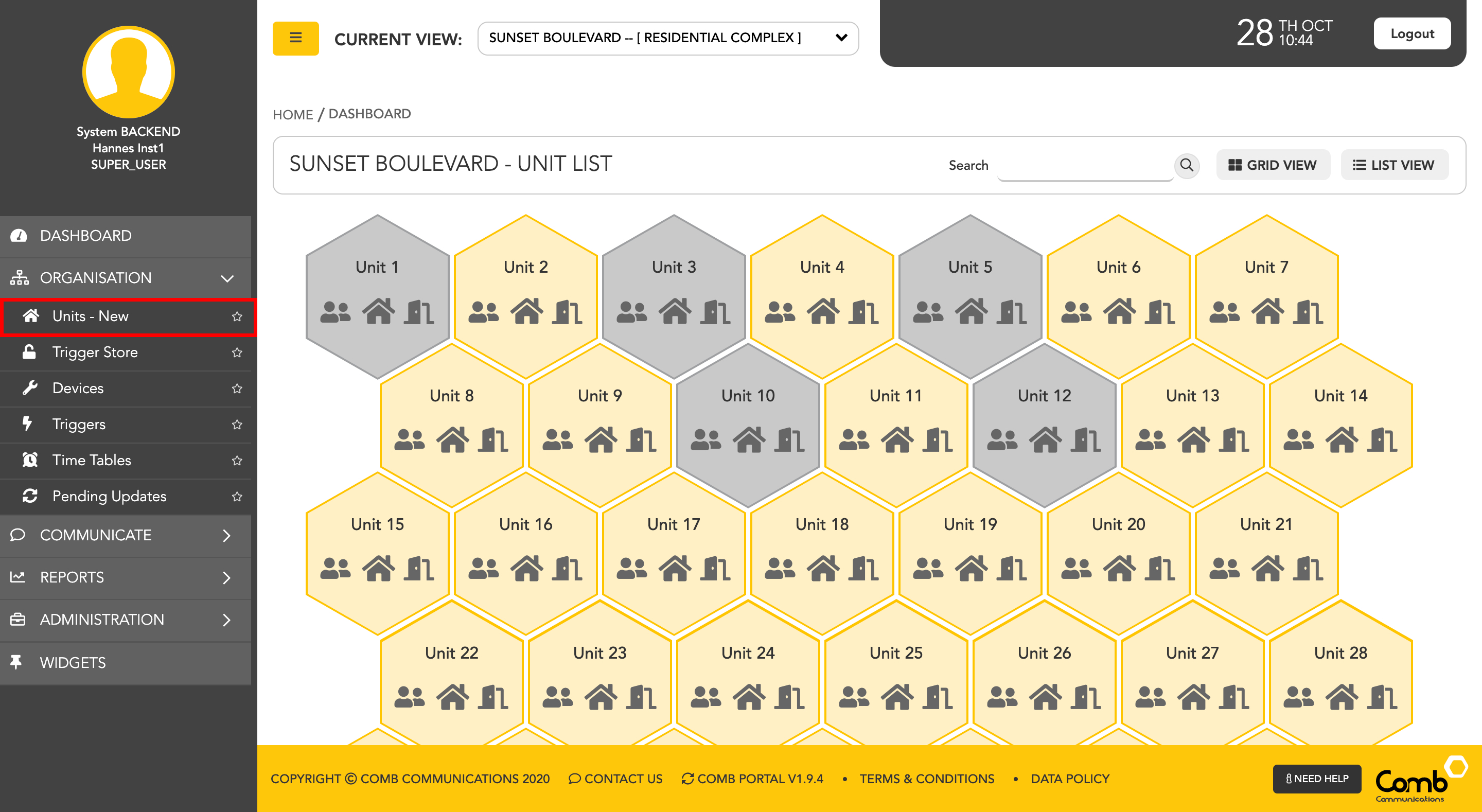
For ease of use, we have designed and developed two individual views to suit your preferences being a GRID and a LIST view as indicated below.
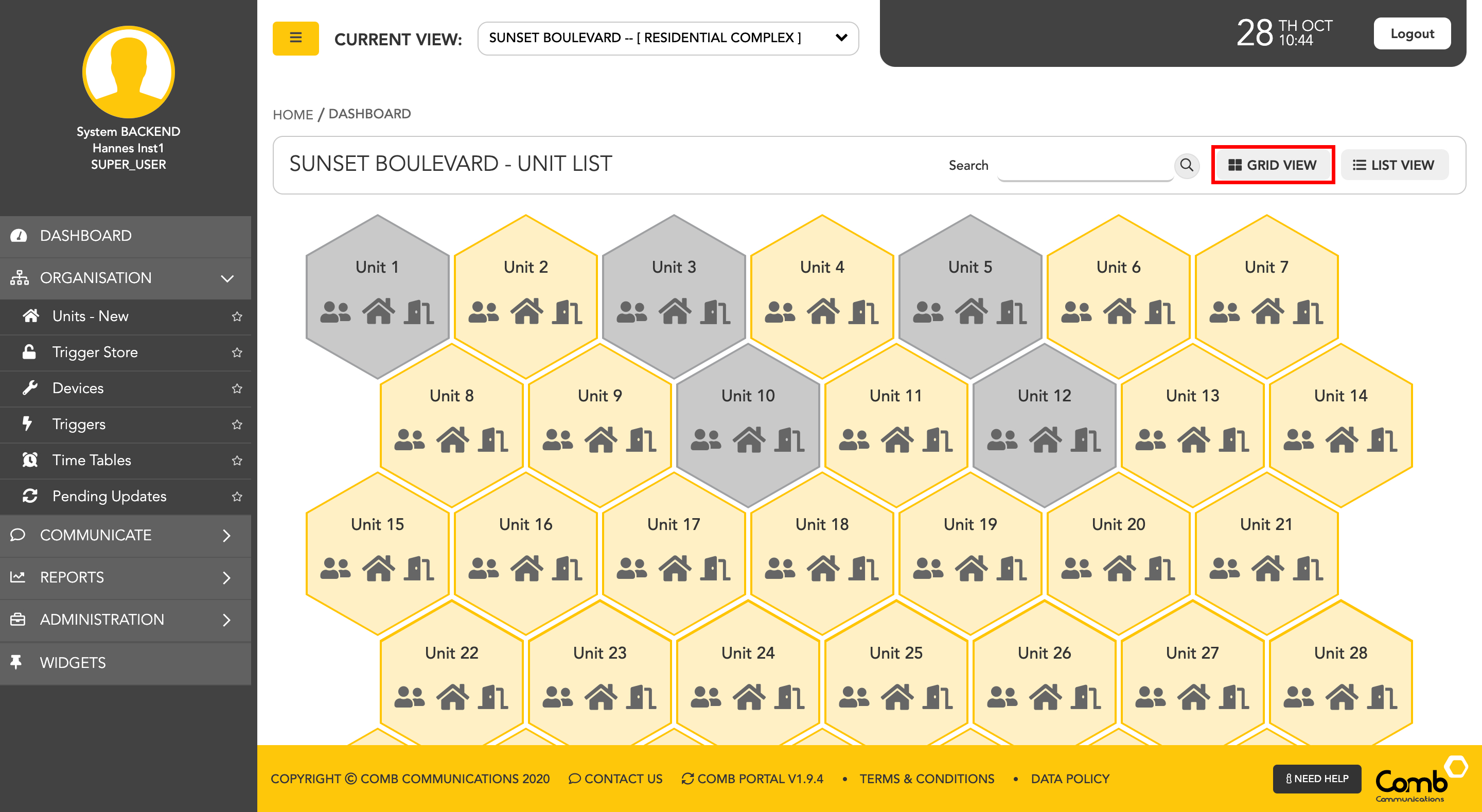
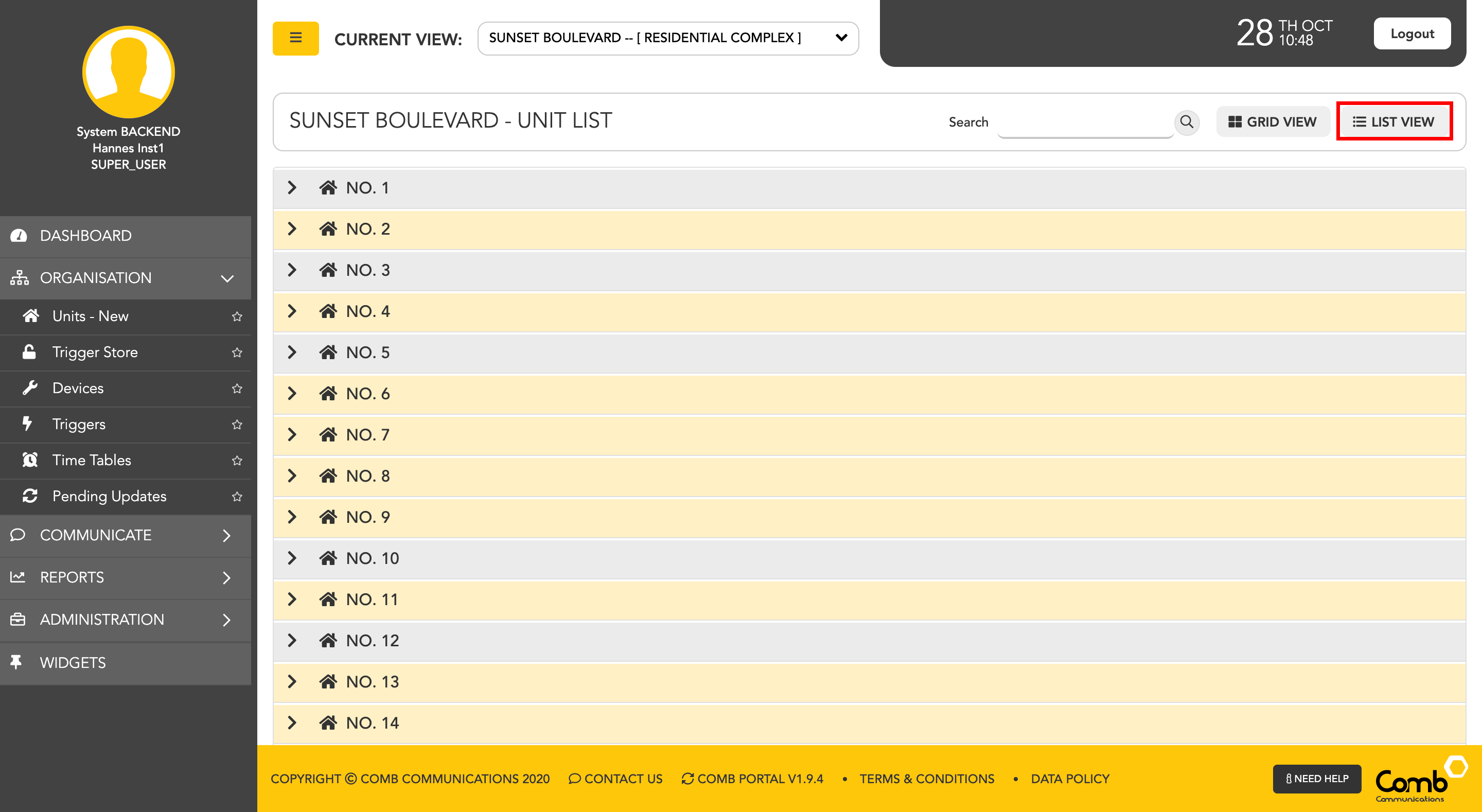
To allow users to navigate and operate the user-interface quickly and more efficiently, we have enabled shortcuts on both views.
How to EDIT a person using the GRID view.
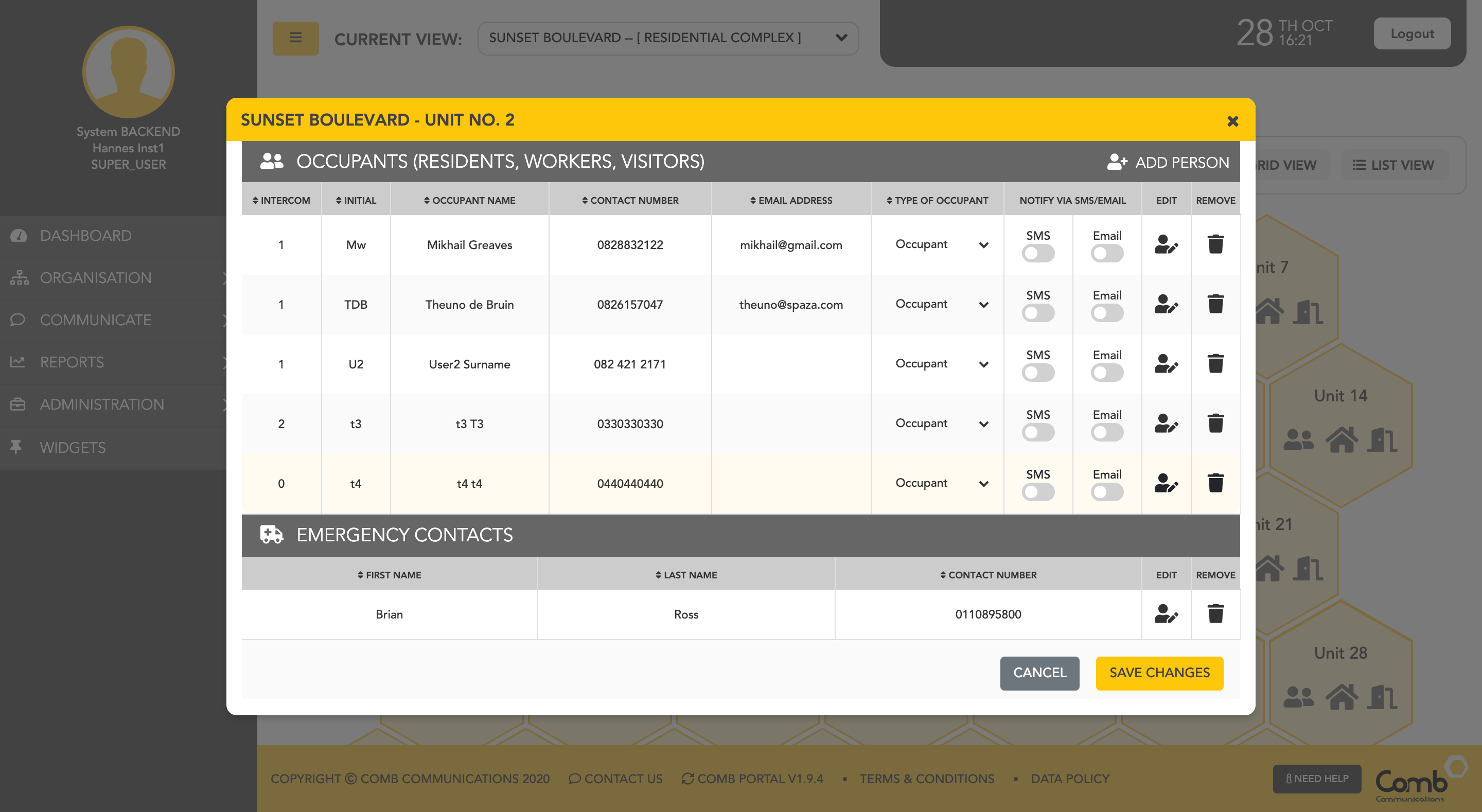
1: Click on the user's icon within a unit (Hexagon shape) to open the occupant's pop-up.
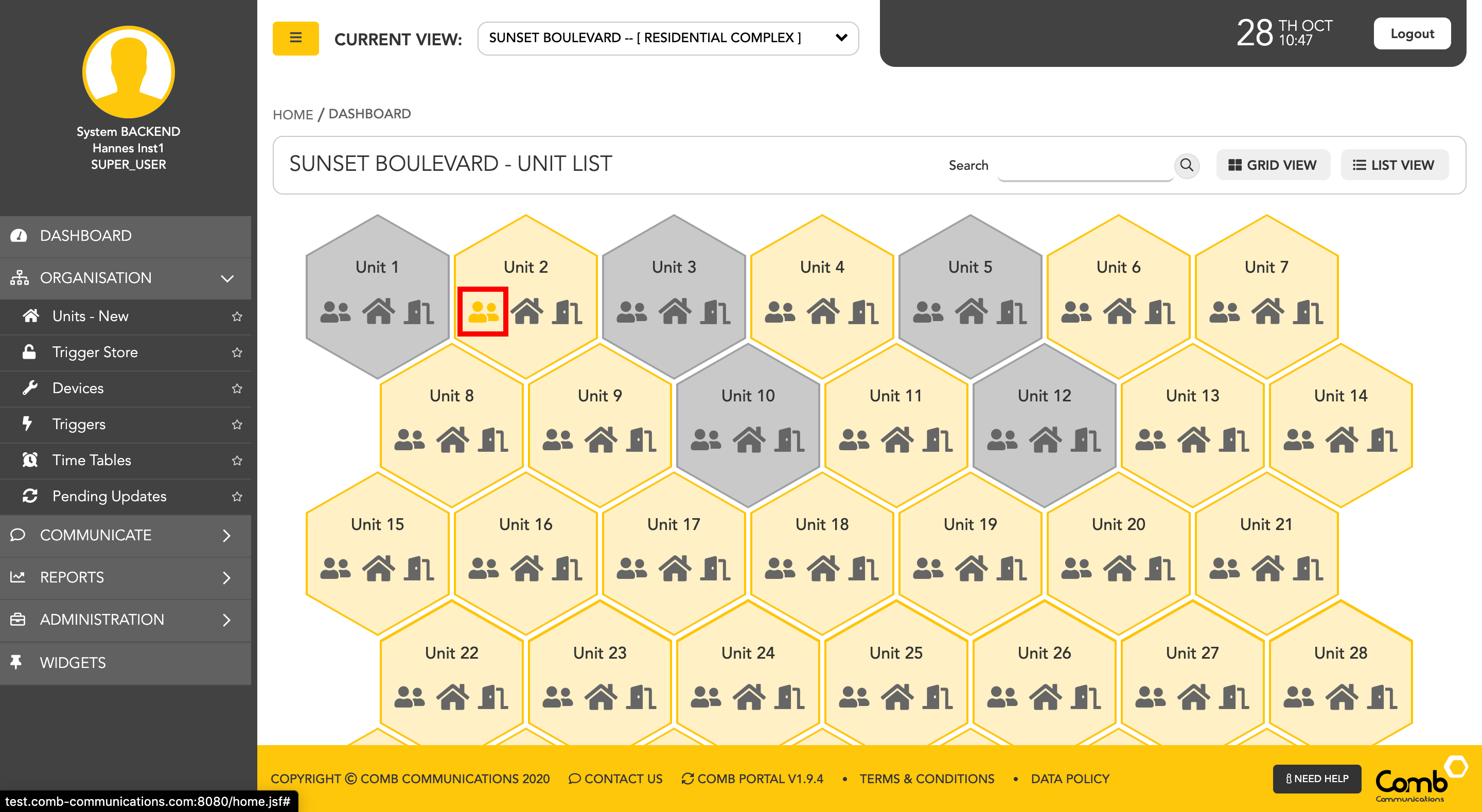
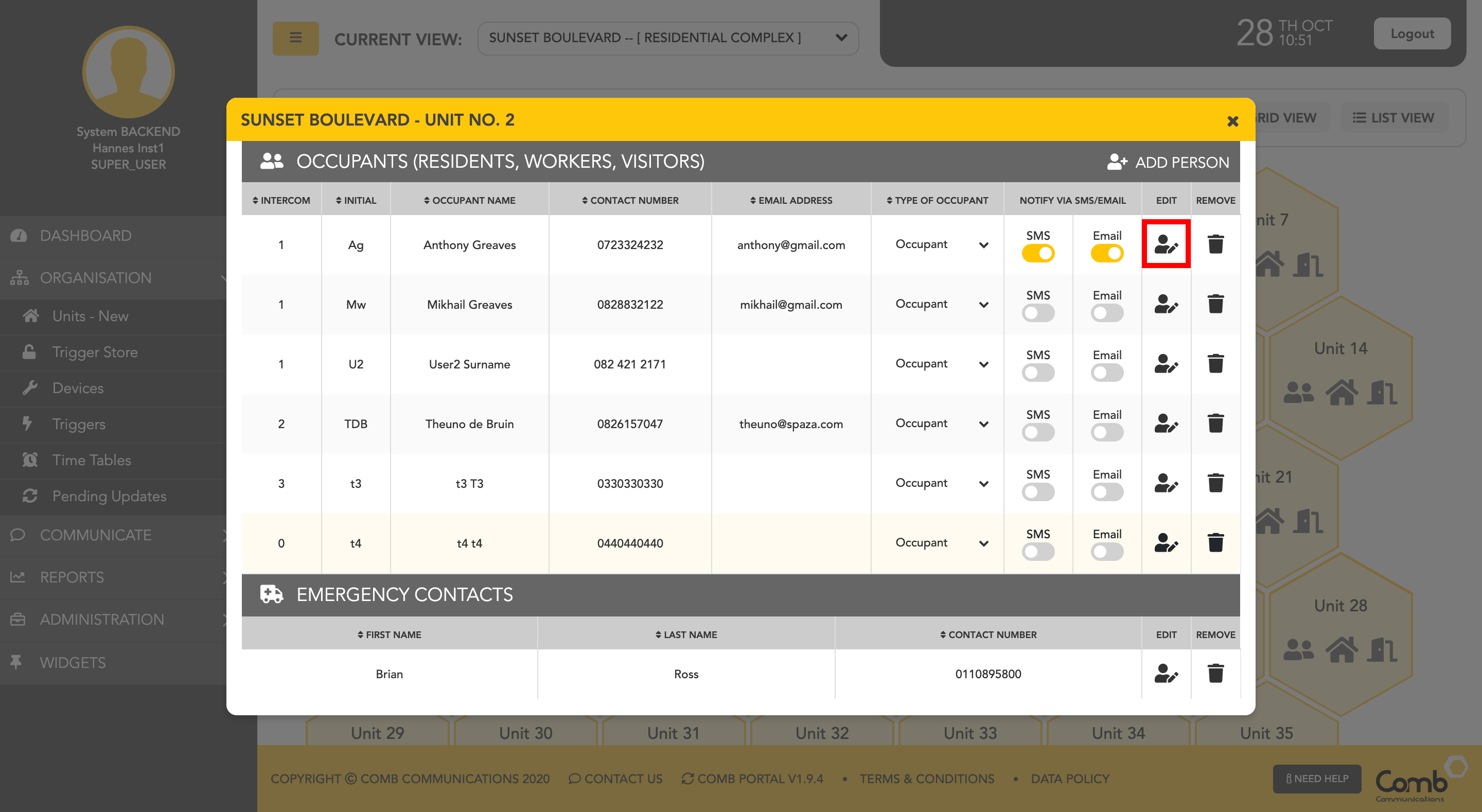
2: Navigate and select the edit icon under the person you would like to edit.
3: The "User information" pop-up will open with editable fields. The user can edit the person's details as required and click the "SAVE CHANGES" button to apply the changes and close the pop-up.
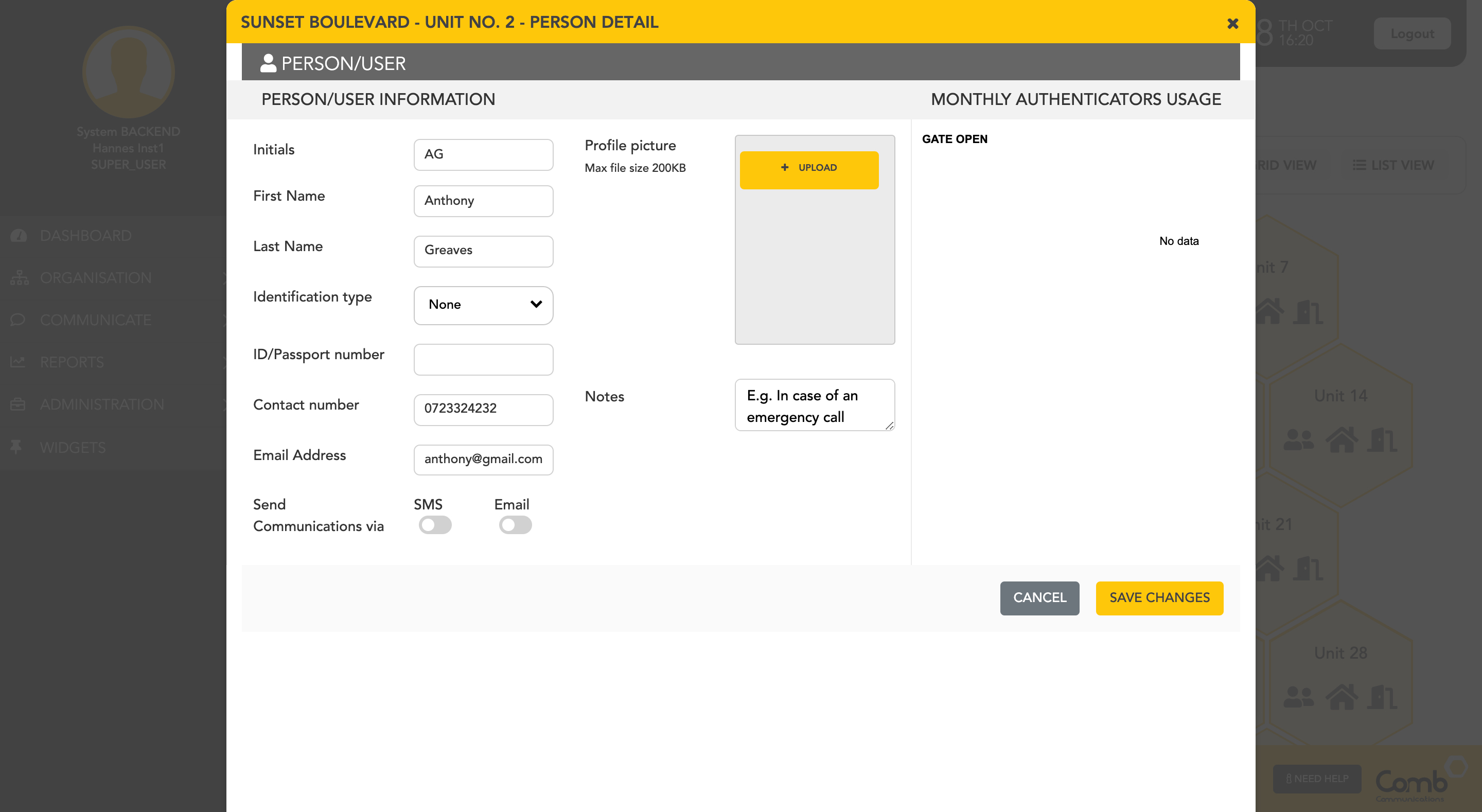
Congratulations! You have successfully edited a person's details.
How to REMOVE a person from a unit using the GRID view.
1: Click on the user's icon within a unit to open the occupant's pop-up.
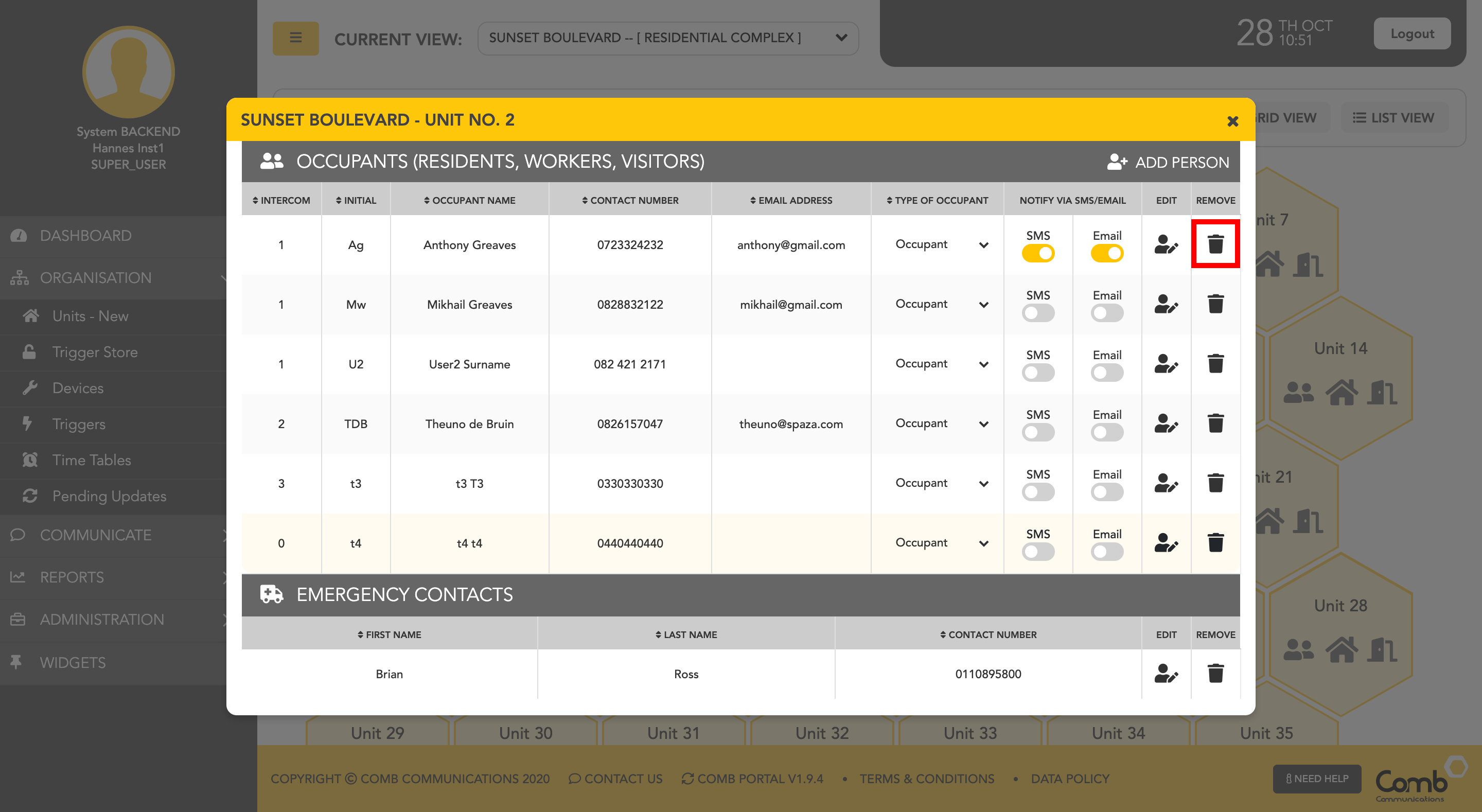
2: Navigate and select the delete icon under the person you would like to remove.
3: A confirmation pop-up will open prompting the user to confirm if they would like to remove the person from the unit.
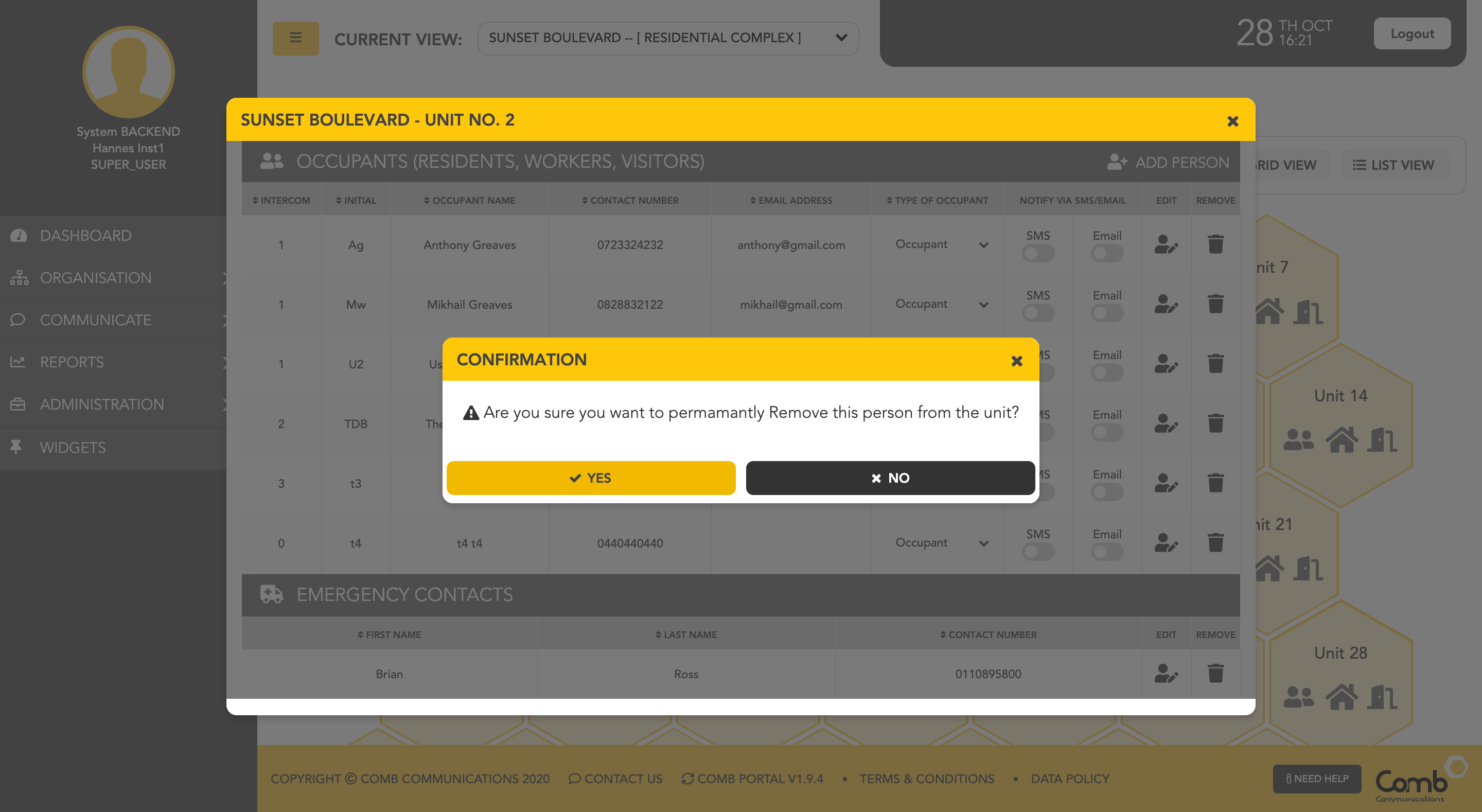
4: Click the "YES" button to remove the user and close the pop-up. The occupant's list will update and the person who has been deleted will be removed from the list.
Congratulations! You have successfully removed a person from a unit.
How to edit and remove people using the LIST view.
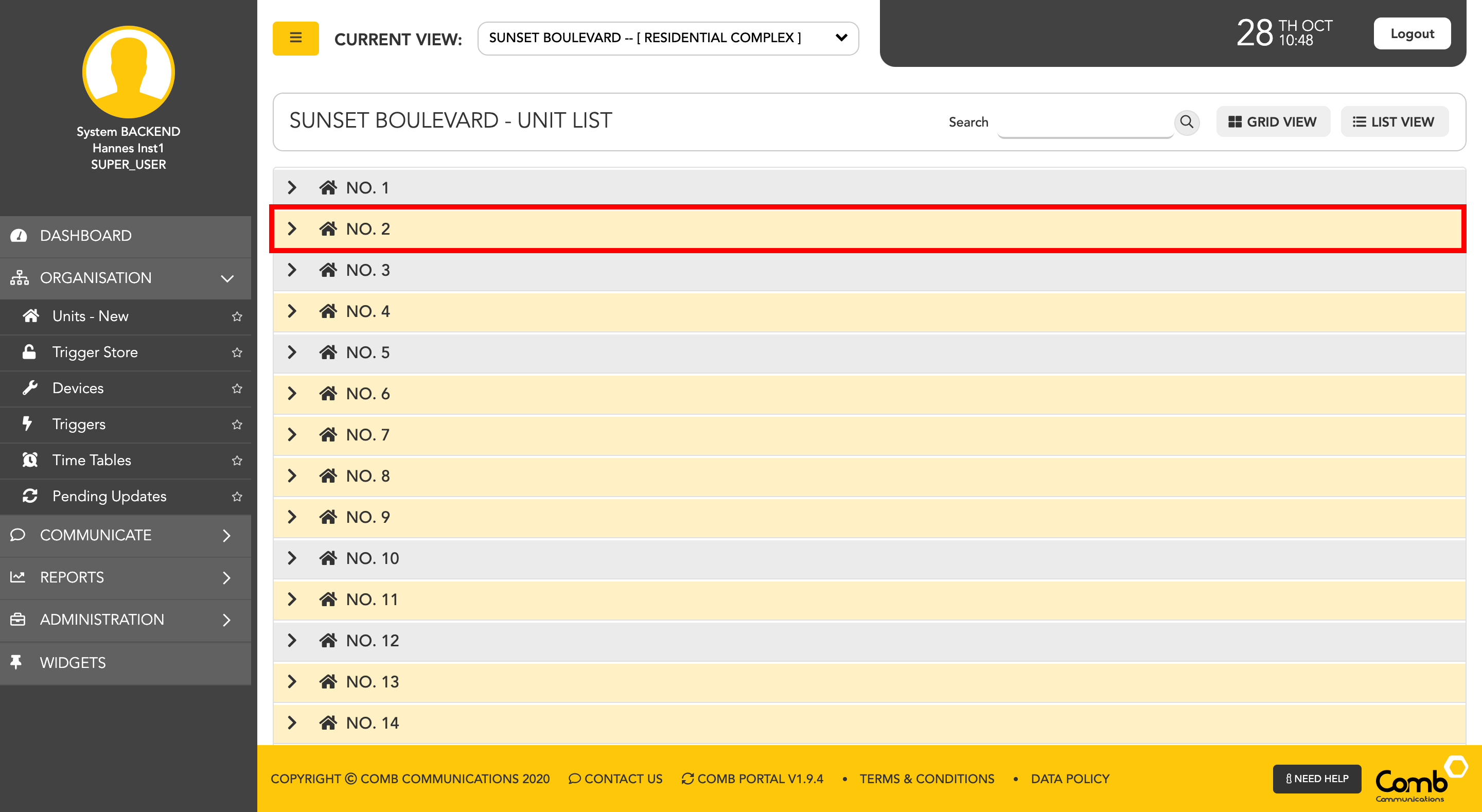
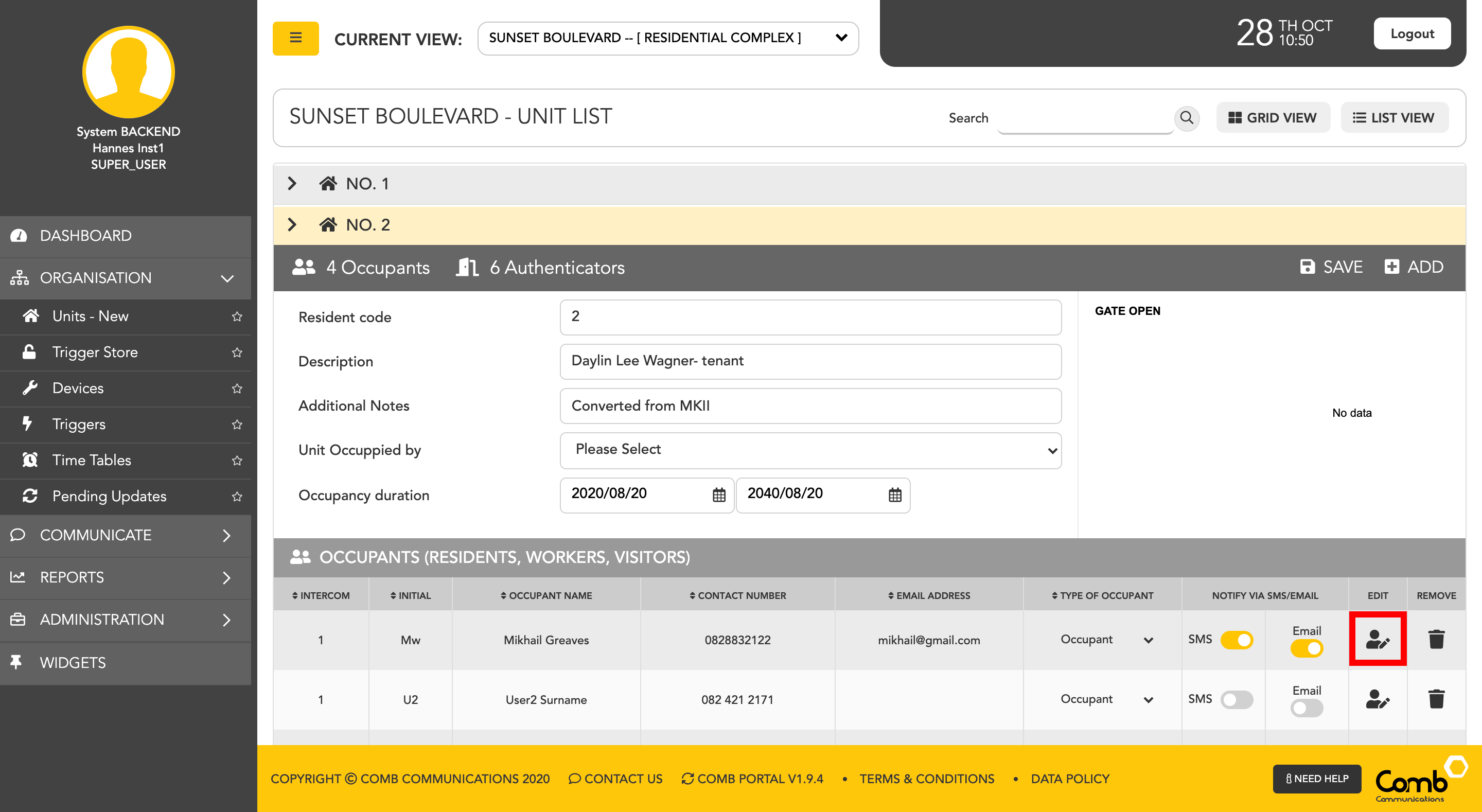
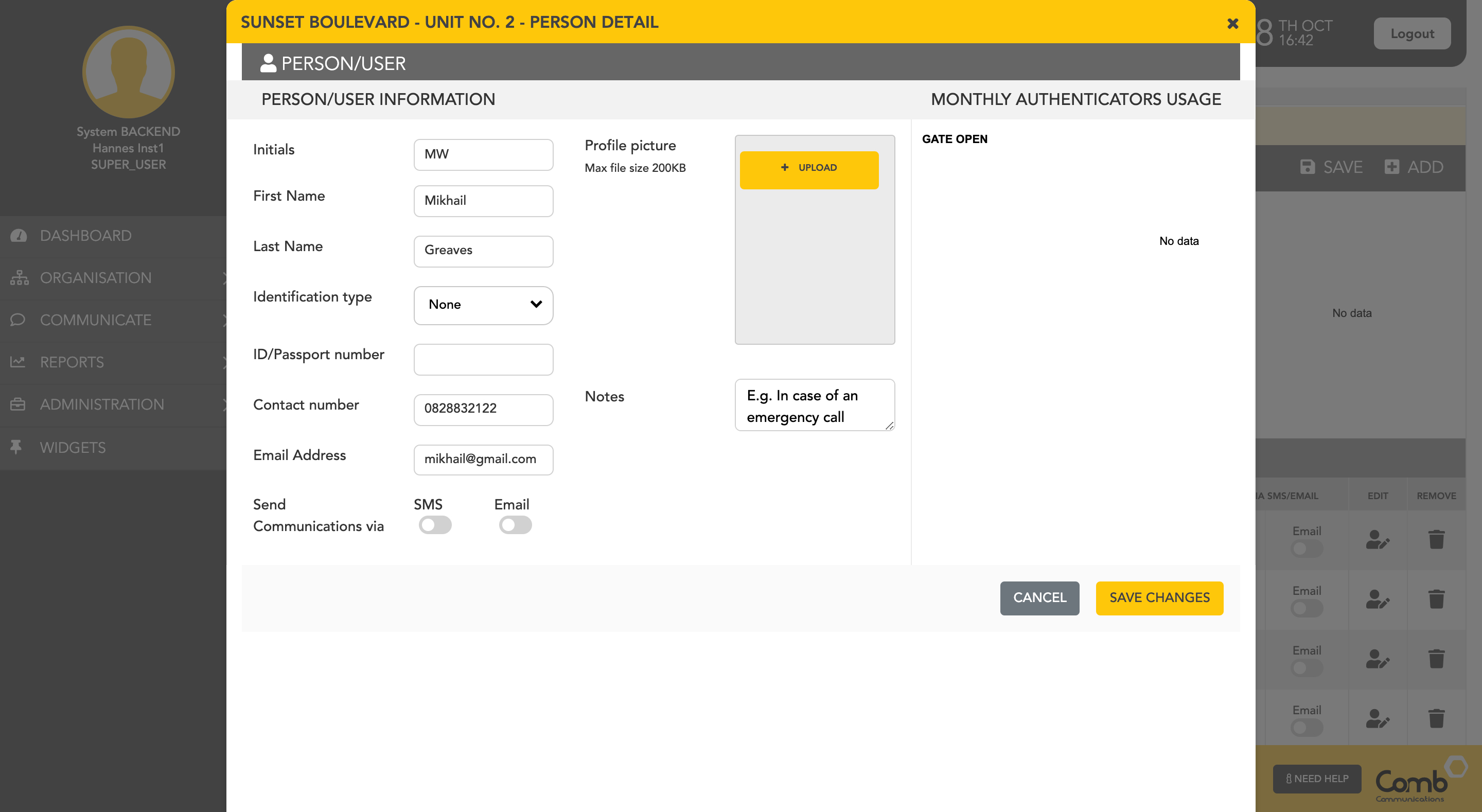
Congratulations! You have successfully edited a person's details.
How to REMOVE a person from a unit using the LIST view.
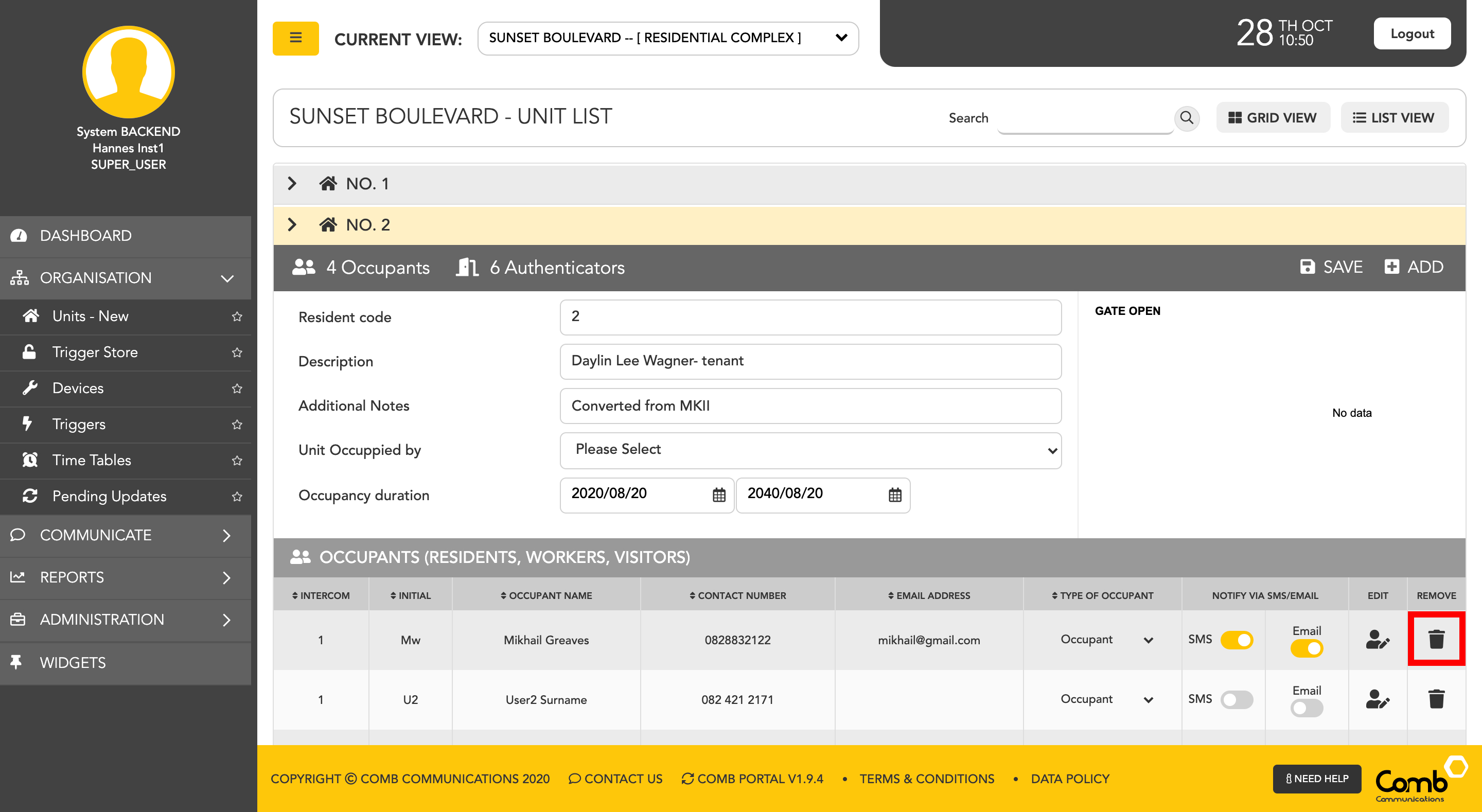
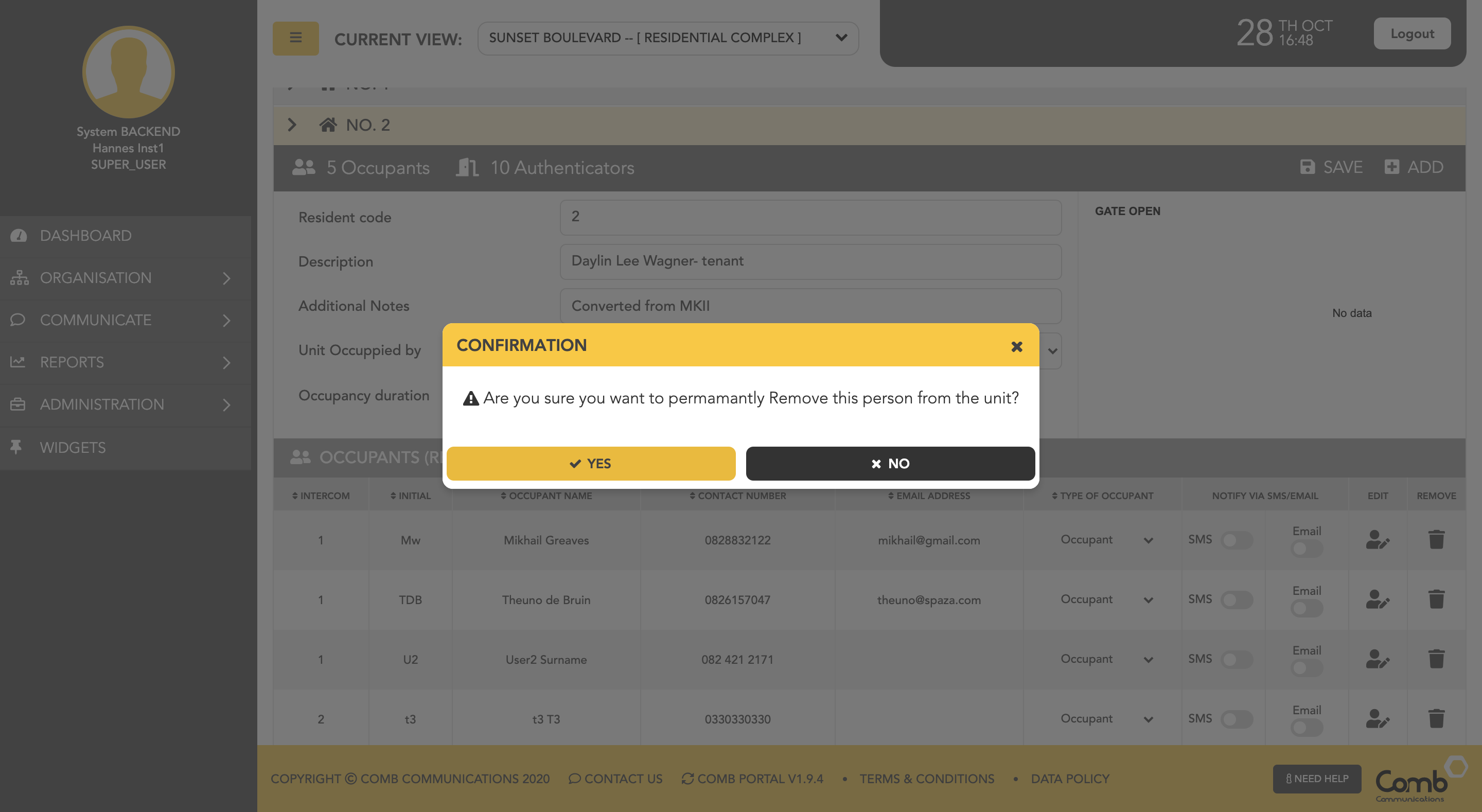
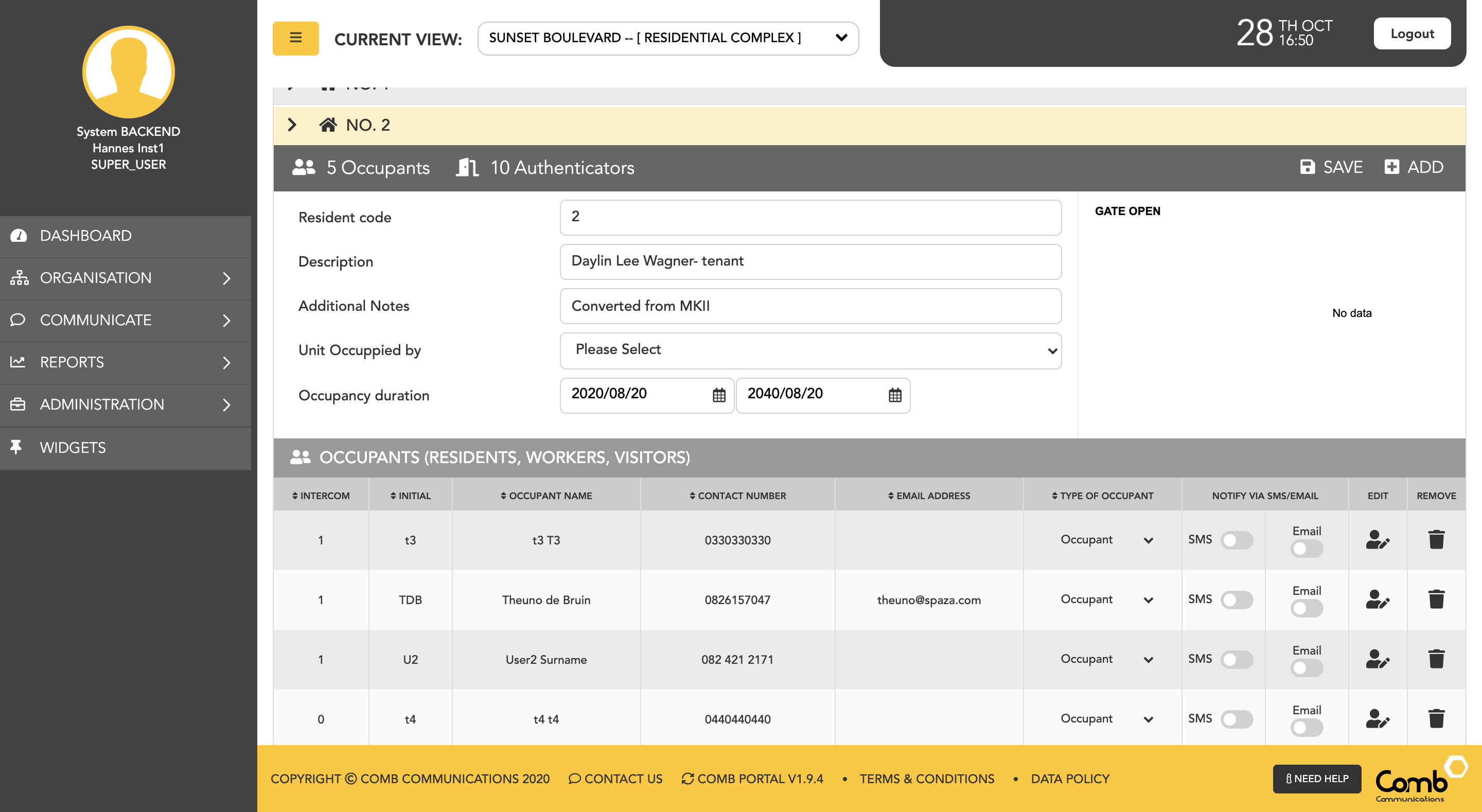
Congratulations! You have successfully removed a person from a unit.
© 2018 Comb Communications. All Rights Reserverd.
http://www.comb-communications.com